[Google Chrome] CORS errors and "unable to connect to data plane" in hybrid deployments
Last updated: December 30, 2025
This issue is applicable to customers matching these conditions
Plans: Enterprise
Deployments: Hybrid
Use case: Accessing Braintrust UI through Chrome with data plane accessed through a VPN or proxy
Issue
Specifically when using Google Chrome - While trying to view experiments, datasets, or logs in the Braintrust web application, you notice "Your browser is unable to connect to the data plane at <custom-domain>" message at the top of the page, along with CORS errors in the browser console Network tab. You may also see a Failed to fetch error in the UI.
Cause
Chrome's local network access security feature blocks public websites (like www.braintrust.dev) from connecting to resources on private network addresses by default. When your data plane is hosted on an internal domain, Chrome prevents the connection unless explicitly allowed.
Resolution(s)
If you can modify Chrome settings (individual users or non-managed browsers)
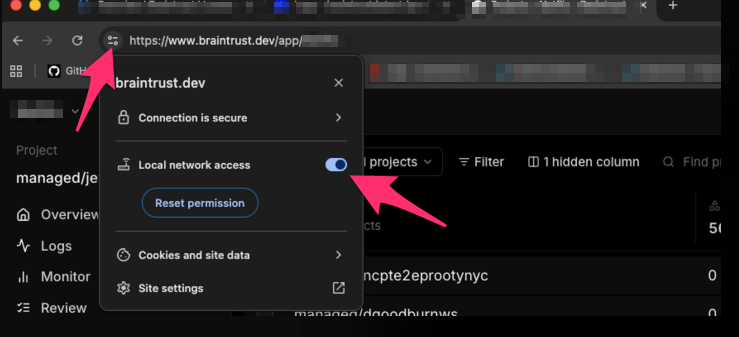
Navigate to Chrome site settings for Braintrust
Open Chrome and go to:
chrome://settings/content/siteDetails?site=https://www.braintrust.devEnable local network access
Scroll down to "Additional permissions" section, find "Allow local network access" and change it to Allow
Refresh the Braintrust page
Reload www.braintrust.dev to apply the new permission setting
Otherwise, if Chrome settings are managed by enterprise policies
Try an alternative browser
Use Firefox or Edge, which may have different local network access policies
Contact your IT/Network team
Request that
www.braintrust.devbe allowlisted for local network access via Chrome enterprise policy, or ask if the data plane endpoint can be configured to use a public domain instead of a private network addressApply the enterprise policy or configuration change
Once IT has made the changes, restart your browser and test access